


What You’ll Learn
Tags are key-value labels that help you organize AWS resources. In this lesson, you will use the AWS CLI to apply, view, update, remove, and search tags for cost allocation and resource inventory.
- Understand how AWS tags work.
- Add and update tags with
resourcegroupstaggingapi tag-resources. - View tags with
get-resources. - Remove tags with
untag-resources. - Find resources by tag filters.
The Concept
An AWS tag is a label made from a key and a value. For example, the tag CostCenter=Marketing identifies which department should be associated with a resource’s costs.
Common tags include:
- CostCenter: identifies the team or department responsible for spending.
- Environment: identifies environments such as development, testing, or production.
- Owner: identifies the person or team responsible for a resource.
- Project: connects resources to a project or application.
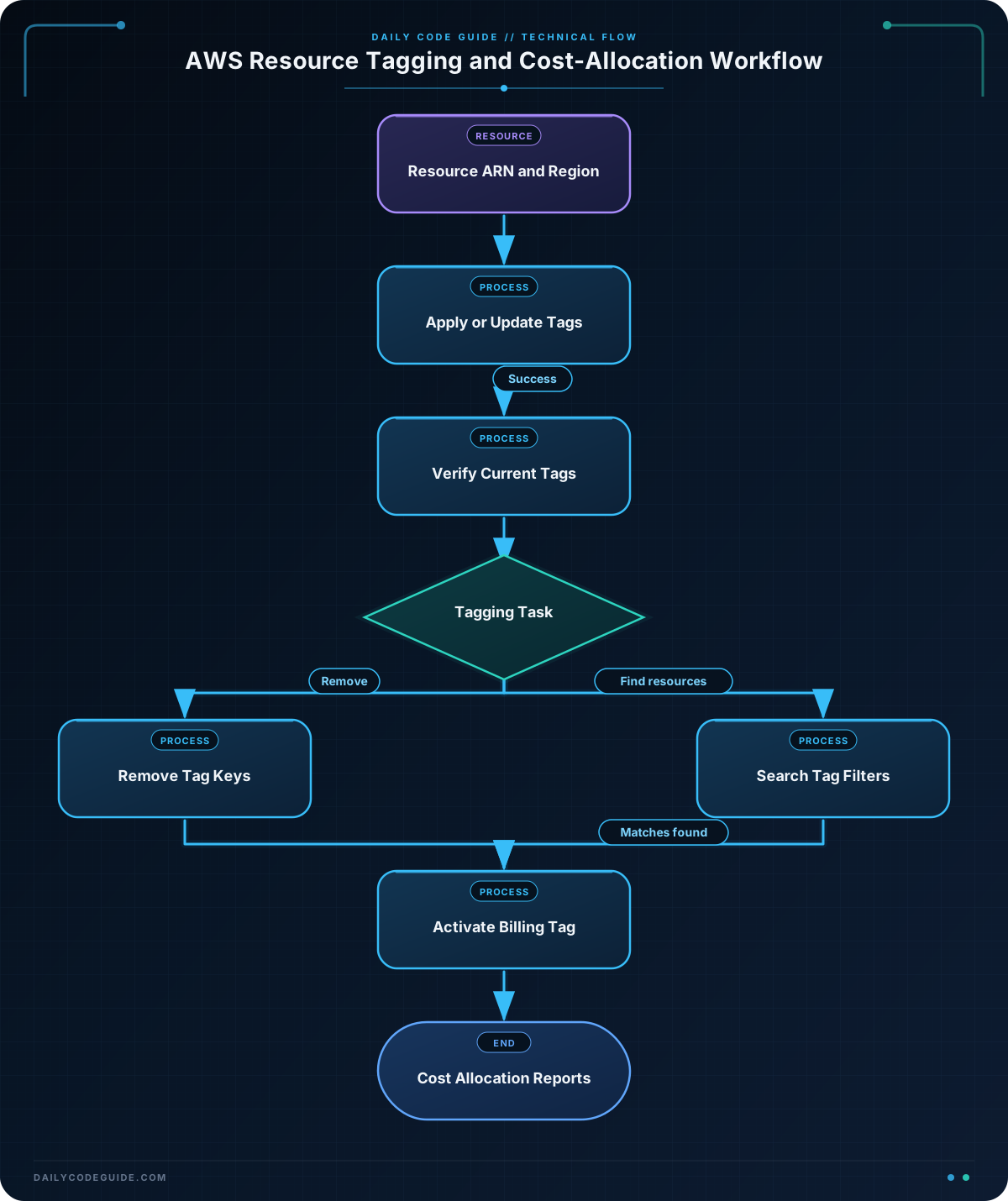
The AWS Resource Groups Tagging API provides general-purpose commands that work across many AWS services. The main commands are:
tag-resourcesadds tags or updates existing tags.get-resourcesdisplays tags or finds resources with specific tags.untag-resourcesremoves tags by key.
These commands operate in a specific AWS Region. To find resources in multiple Regions, run the search separately for each Region. Also, not every AWS resource type supports the Resource Groups Tagging API, so check the service documentation when a resource does not appear.
For cost allocation, applying a tag is only one step. You must also activate the tag as a cost allocation tag in the AWS Billing console before it is used in cost reports.
Basic Example
The following example works with an existing EC2 instance. Replace the sample instance ID and account ID with values from your AWS account. The instance ARN has this format:
arn:aws:ec2:REGION:ACCOUNT_ID:instance/INSTANCE_ID
This script applies cost and organization tags, views them, updates one tag, and then removes the Environment tag.
#!/usr/bin/env bash

REGION="us-east-1"
INSTANCE_ARN="arn:aws:ec2:us-east-1:123456789012:instance/i-0123456789abcdef0"

aws resourcegroupstaggingapi tag-resources \
    --region "$REGION" \
    --resource-arn-list "$INSTANCE_ARN" \
    --tags CostCenter=Marketing Environment=Development Owner=platform-team

aws resourcegroupstaggingapi get-resources \
    --region "$REGION" \
    --resource-arn-list "$INSTANCE_ARN" \
    --output json

aws resourcegroupstaggingapi tag-resources \
    --region "$REGION" \
    --resource-arn-list "$INSTANCE_ARN" \
    --tags Environment=Production

aws resourcegroupstaggingapi untag-resources \
    --region "$REGION" \
    --resource-arn-list "$INSTANCE_ARN" \
    --tag-keys Environment
Expected Output
The tagging command returns an empty failure map when the resource was tagged successfully. The resource details vary depending on your instance and existing tags.
{
    "FailedResourcesMap": {}
}
The final state has the CostCenter and Owner tags. The Environment tag is first set to Development, updated to Production, and then removed.
How the Code Works
REGION stores the Region where the EC2 instance exists. The --region option tells each AWS CLI command where to send the request.
INSTANCE_ARN stores the complete resource identifier. The Resource Groups Tagging API expects an ARN rather than only an EC2 instance ID.
The first command uses tag-resources:
--resource-arn-listidentifies one or more resources.--tagsaccepts tag assignments inKey=Valueformat.- Several tags can be supplied in the same command.
If a resource already has a tag with the same key, applying that key again updates its value. That is why the second tag-resources command changes Environment from Development to Production. Tag keys are the important part when updating; the old value does not need to be removed first.
The get-resources command displays the resource’s current tags. It is useful for verifying that a tagging operation produced the result you expected.
The untag-resources command removes tags with --tag-keys. It removes the tag key named Environment, regardless of whether its current value is Development or Production.
Your IAM identity needs permission to perform these operations. Depending on the resource and account, you may need permissions such as tag:GetResources, tag:TagResources, and tag:UntagResources.
Another Example
You can also search for resources instead of supplying a specific ARN. This command searches the current Region for EC2 instances whose tags include CostCenter=Marketing. The query prints only the matching resource ARNs.
REGION="us-east-1"

aws resourcegroupstaggingapi get-resources \
    --region "$REGION" \
    --resource-type-filters ec2:instance \
    --tag-filters Key=CostCenter,Values=Marketing \
    --query 'ResourceTagMappingList[].ResourceARN' \
    --output text
The --tag-filters option searches for a tag key and one or more possible values. The --resource-type-filters option limits the search to EC2 instances. Removing that option allows the API to search all supported resource types in the Region.
The --query option uses a JMESPath expression to select only the resource ARN from the response. Using --output text makes the result convenient to read or pass to another command.
Common Mistakes
- Using the wrong Region: A resource in
us-west-2will not appear in a search sent tous-east-1. Always provide the correct--region. - Using an ID where an ARN is required: The Resource Groups Tagging API expects a full ARN in
--resource-arn-list. - Expecting every AWS resource to appear: The API supports many resource types, but not every AWS service or resource. A service-specific tagging command may be necessary for unsupported resources.
- Expecting tag keys to be case-insensitive:
CostCenter,costcenter, andcost-centerare different keys. Choose a naming convention and use it consistently. - Confusing tagging with cost allocation activation: A resource can have a
CostCentertag without that tag being active for billing reports. Activate the tag in the Billing console as well.
Try It Yourself
Choose an existing resource that supports the Resource Groups Tagging API and try the following tasks:
- Add the tags
Project=InventoryDemoandEnvironment=Test. - Use
get-resourceswith the resource ARN to verify both tags. - Change
EnvironmenttoProduction. - Remove the
Projecttag.
Check the resource after each operation so you can observe how the tag set changes.
Challenge
Use an existing S3 bucket to create a small cost-allocation tagging workflow.
- Store the bucket’s ARN and Region in shell variables.
- Add the tags
CostCenter=FinanceandProject=BudgetReports. - Search for resources with
CostCenter=Finance, limiting the search to S3 buckets. - Remove the
Projecttag from the bucket.
Use the bucket ARN format arn:aws:s3:::BUCKET_NAME. The search should print matching resource ARNs rather than the full JSON response.
Solution
#!/usr/bin/env bash

REGION="us-east-1"
BUCKET_ARN="arn:aws:s3:::company-budget-reports"

aws resourcegroupstaggingapi tag-resources \
    --region "$REGION" \
    --resource-arn-list "$BUCKET_ARN" \
    --tags CostCenter=Finance Project=BudgetReports

aws resourcegroupstaggingapi get-resources \
    --region "$REGION" \
    --resource-type-filters s3:bucket \
    --tag-filters Key=CostCenter,Values=Finance \
    --query 'ResourceTagMappingList[].ResourceARN' \
    --output text

aws resourcegroupstaggingapi untag-resources \
    --region "$REGION" \
    --resource-arn-list "$BUCKET_ARN" \
    --tag-keys Project
The first command adds both required tags. The second command searches supported S3 buckets in the selected Region and prints only those with the Finance cost-center tag. The final command removes only the Project tag, leaving CostCenter=Finance in place.
Key Takeaways
- Use
tag-resourcesto add tags and update existing tag values. - Use
get-resourcesto inspect tags or find resources by tag filters. - Use
untag-resourceswith tag keys to remove tags. - Always check the resource ARN and AWS Region before running a tagging command.
- Tags must be activated separately in AWS Billing before they can be used as cost allocation tags in cost reports.

