


What You’ll Learn
In this lesson, you will learn how to use the Bash find command to locate application log files based on their age. You will also create safe archive copies while leaving the original log files untouched.
- Use
findto search for files by name and type. - Use
-mtimeto locate files older than a chosen number of days. - Preview matching files before changing anything.
- Copy old logs into an archive while preserving their directory structure.
The Concept
Applications often create log files that are useful for troubleshooting but become less important as they get older. Instead of searching through directories manually, Bash provides the find command for locating files that match specific conditions.
A basic find command has this shape:
find DIRECTORY -type f -name 'PATTERN'DIRECTORYis where the search starts.-type flimits results to regular files, not directories.-name 'PATTERN'filters files by their names.
To search by age, add -mtime. For example, -mtime +30 finds regular files whose modification time is more than 30 24-hour periods ago:
find "$HOME/app-logs" -type f -name '*.log' -mtime +30 -printThe -print action displays each matching path. This is a useful first step because you can inspect the results before copying or deleting anything.
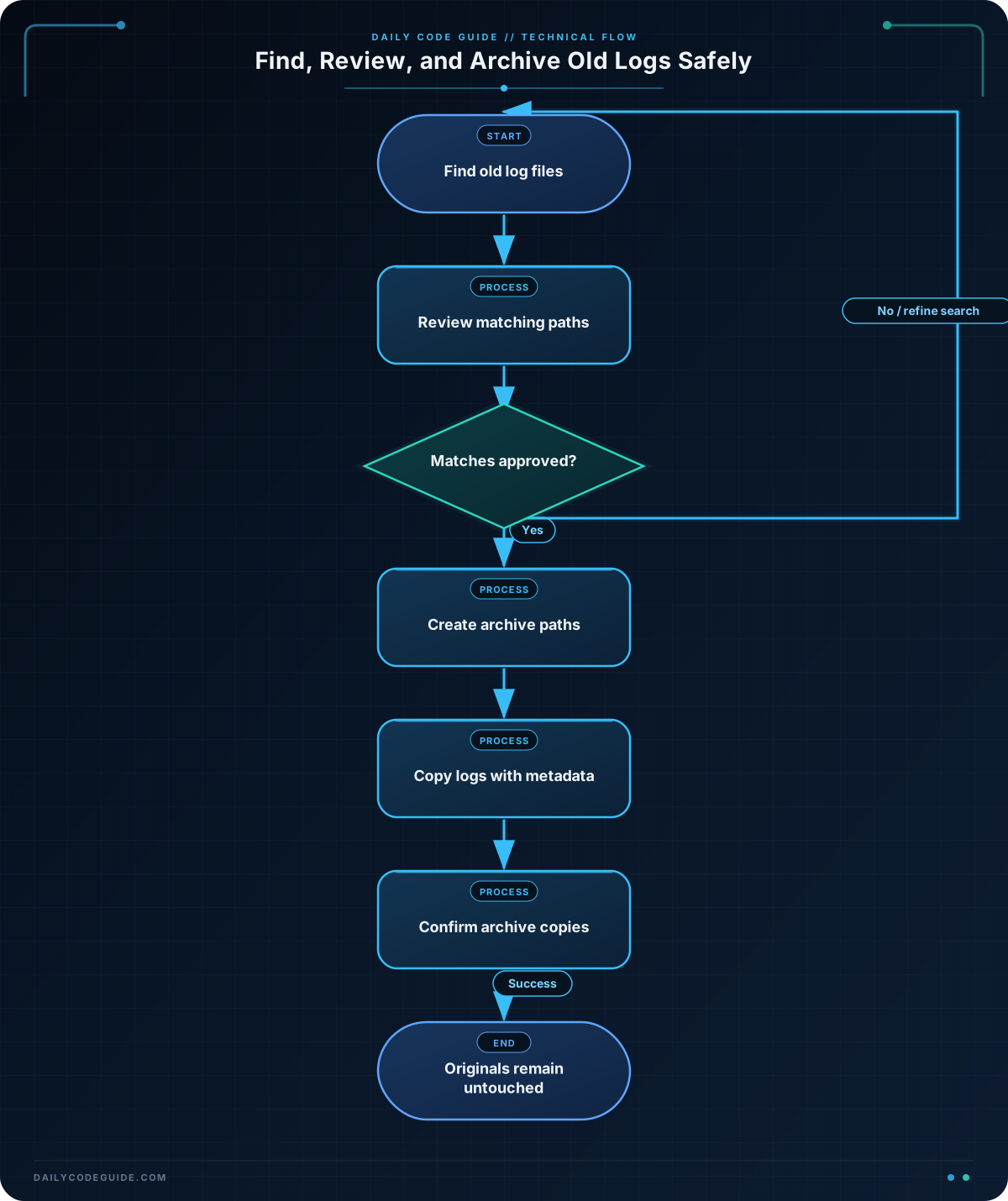
For safe log management, use this workflow:
- Find the files.
- Review the list.
- Copy the files to an archive location.
- Confirm the copies exist.
- Only consider deleting originals later, and only if your retention policy allows it.
Basic Example
The following Bash script finds .log files older than 30 days in $HOME/app-logs. It copies each file to $HOME/app-log-archives and preserves any subdirectories below the log directory.
#!/usr/bin/env bash

log_dir="$HOME/app-logs"
archive_dir="$HOME/app-log-archives"

mkdir -p "$archive_dir"

printf 'Old log files found:\n'

while IFS= read -r -d '' log_file; do
    relative_path=${log_file#"$log_dir"/}
    archive_path="$archive_dir/$relative_path"

    mkdir -p "$(dirname "$archive_path")"
    cp -p "$log_file" "$archive_path"

    printf 'Archived copy: %s\n' "$archive_path"
done < <(find "$log_dir" -type f -name '*.log' -mtime +30 -print0)
Before running the script, make sure the directory $HOME/app-logs contains some test log files. The archive directory is created automatically if it does not exist.
Expected Output
The exact output depends on the files in your log directory. For example, if an old file named payments/service.log is found, the output may look like this:
Old log files found:
Archived copy: /home/alex/app-log-archives/payments/service.log
Files that are not older than 30 days, files that do not end in .log, and directories are ignored.
How the Code Works
log_dir and archive_dir store the two directory paths in variables. Quoting these variables protects paths that contain spaces.
mkdir -p "$archive_dir" creates the main archive directory. The -p option also creates missing parent directories and does not report an error if the directory already exists.
The find portion searches for regular files:
find "$log_dir" -type f -name '*.log' -mtime +30 -print0-type fselects regular files.-name '*.log'selects names ending in.log. The quotes prevent the shell from expanding the pattern beforefindreceives it.-mtime +30selects files older than 30 days.-print0separates results with a null character, making the loop safer for filenames containing spaces.
The loop reads one matching path at a time. The relative_path expression removes the beginning of the original log directory from the full path. For example:
/home/alex/app-logs/payments/service.logbecomes:
payments/service.logThat relative path is then added to the archive directory. As a result, a log in app-logs/payments is copied to the matching app-log-archives/payments directory.
cp -p copies the file and attempts to preserve its mode, ownership, and timestamps. Most importantly, this command copies the source; it does not remove it. The original log remains available if the archive copy needs to be checked.
Another Example
Sometimes you want to narrow the list before archiving. For example, a large log file that is older than 60 days may deserve attention first. The following script creates a review report instead of copying anything:
#!/usr/bin/env bash

log_dir="$HOME/app-logs"
report_file="$HOME/large-old-logs.txt"

find "$log_dir" \
    -type f \
    -name '*.log' \
    -mtime +60 \
    -size +10M \
    -print > "$report_file"

printf 'Review report created at: %s\n' "$report_file"
printf 'Matching files:\n'
cat "$report_file"
This uses two filters together: -mtime +60 finds logs older than 60 days, while -size +10M selects files larger than 10 megabytes. The results are written to a report so you can review them before deciding whether they should be archived.
Common Mistakes
Deleting files during the first search
Actions such as -delete remove matching files immediately. A small mistake in the directory or age condition can delete important data. Start with -print, review the results, and make a backup or archive copy first.
Searching the wrong directory
find searches recursively from the directory you provide. Check the value of your variable before running the command:
printf 'Searching: %s\n' "$log_dir"Forgetting that -mtime uses 24-hour periods
-mtime +30 does not mean “created during the previous calendar month.” It means the file’s modification time is more than 30 measured 24-hour periods in the past. Also remember that find checks modification time, not necessarily the time when the file was created.
Leaving variables unquoted
Paths can contain spaces. Use forms such as find "$log_dir" and cp -p "$log_file" "$archive_path" so the shell treats each path as one argument.
Try It Yourself
Create a directory named $HOME/practice-logs and place several .log files inside it. Then write a find command that displays regular log files older than 14 days. Do not copy or delete anything yet.
After checking the results, change the command to search only inside a subdirectory named api. Notice how changing the starting directory changes the search scope.
Challenge
Write a Bash script that safely archives old service logs.
- Search under
$HOME/service-logs. - Find regular files ending in
.logthat are older than 14 days. - Copy them to
$HOME/service-log-archive. - Preserve their directory structure below
$HOME/service-logs. - Print the destination of every copied file.
- Do not delete or modify the original files.
Solution
#!/usr/bin/env bash

source_root="$HOME/service-logs"
archive_root="$HOME/service-log-archive"

mkdir -p "$archive_root"

while IFS= read -r -d '' source_file; do
    path_below_root=${source_file#"$source_root"/}
    destination_file="$archive_root/$path_below_root"
    destination_directory=$(dirname "$destination_file")

    mkdir -p "$destination_directory"
    cp -p "$source_file" "$destination_file"

    printf 'Copied %s to %s\n' "$source_file" "$destination_file"
done < <(find "$source_root" -type f -name '*.log' -mtime +14 -print0)
The find command selects only old regular log files. The loop calculates each file’s path relative to the source directory, creates the needed destination directory, and copies the file. Since the script uses cp and never uses rm or -delete, the original service logs remain in place.
Key Takeaways
findcan search recursively by directory, file type, name, and age.-mtime +Nfinds files older than more thanN24-hour periods.- Use
-printor-print0to inspect matches before taking action. - Copy old logs to an archive before considering any cleanup.
- Quote Bash path variables and preserve directory structure when working with files.

